Compress Photo Between 20KB to 50KB
The world's most advanced AI-style smart compressor. Convert photo into 20 KB to 50 KB JPG, create form-ready JPEG files, and optionally resize to exact pixel dimensions. Powered by iLovePDF Tools Hub Technology and processed privately in your browser.
Upload your Image
Drag & drop or click to browse (JPG, PNG, WebP)
Settings
AI will try to keep the final JPG between 20KB and 50KB.
Default is 140 x 60 pixels, ideal for signature/photo upload portals that require exact pixel dimensions.
Uses high-quality resampling, sharpening, contrast balancing, and 4K-safe processing when the selected KB range allows it. For strict 20KB-50KB output, the engine prioritizes portal acceptance while preserving maximum possible clarity.
Live Preview & Results
Ready to Compress
Compress Photo Between 20KB to 50KB - Advanced iLovePDF Tools Hub Compressor
Need to Photo convert into 20 KB to 50 KB JPG for a government form, school admission, exam portal, job application, banking website, or document upload page? This iLovePDF Tools Hub page is built for exactly that requirement. Many online portals reject normal phone photos because a camera image can be 2MB, 5MB, or even 12MB, while the portal allows only a small range such as 20KB to 50KB. Our browser-based engine helps you convert a large JPG, PNG, WebP, or GIF into a compact form-ready JPEG while keeping the result readable and ready for upload.
This is not a basic slider tool. The compressor uses a modern iterative method: it checks the file size, adjusts encoding quality, resamples pixels with high-quality canvas processing, and repeats the process until the image fits your selected range. The default minimum is 20KB and the default maximum is 50KB. That makes the page ideal for searches like Compress photo between 20kb to 50kb jpg, Compress photo between 20kb to 50kb online, Photo convert into 20 KB JPEG, and Image compressor to 20KB.
Why 20KB to 50KB Photo Compression Matters
Many application portals do not ask for one exact file size. Instead, they show instructions such as “photo should be between 20KB and 50KB” or “signature should be 20KB to 50KB.” If the image is below the minimum, the portal may reject it because it is too small or unclear. If the image is above the maximum, the upload fails because the file is too heavy. A normal one-click compressor often creates a file under the maximum but ignores the minimum. Our range-focused tool is designed to keep your output inside the correct bracket.
The default setting aims for the upper side of the range, because a file close to 50KB usually keeps better quality than a file close to 20KB. If your portal gives a different instruction, you can change the minimum and maximum values. For example, if you need Photo compress 50 to 100 KB, set minimum to 50 and maximum to 100. If you need Compress image to 50KB, keep maximum at 50. This flexibility helps the tool serve multiple real-world upload rules from one clean interface.
Compress Photo Between 20KB to 50KB Online - Built for Fast Ranking
Users searching for Compress photo between 20kb to 50kb online usually want a fast, simple, and reliable result without installing software. This page is created around that exact intent. It loads quickly, works in the browser, supports JPG, PNG, WebP, and GIF inputs, and produces a downloadable image immediately. The tool is also written for related search phrases such as Photo convert into 20 KB to 50 KB JPG, Compress photo between 20kb to 50kb jpg, Compress image to 50KB, and 20kb to 50kb photo size in pixels. That combination of useful functionality and focused content helps Google understand the page clearly.
The best part is privacy. Your image is processed locally in the browser, so private signatures, ID photos, form photos, and document images do not need to be uploaded to a remote server. This is important for students, job applicants, banking users, and anyone handling personal documents. The result is a fast online tool that feels modern while still being practical for everyday form upload requirements.
Why is 20KB to 50KB Compression so Difficult?
To understand why achieving a 20KB to 50KB photo size is hard, consider that a standard smartphone photo is around 5,000KB (5MB). To reduce that photo into a tiny range, you are asking for a massive reduction in file size. A normal compressor may simply lower JPG quality until the photo becomes blocky. Our tool balances quality, pixel dimensions, and target size, which gives a better result for small document photos and signatures.
A Compress photo between 20kb to 50kb jpg job must consider the content of the photo. A white-background signature may compress easily, but a colorful passport photo has more detail and needs stronger resizing. The engine starts with smart quality testing and then moves to high-quality resampling when needed. This helps preserve face clarity, text edges, signature strokes, and document boundaries even when the target file is very small.
20KB to 50KB Photo Size in Pixels
People often ask about 20kb to 50kb photo size in pixels, but there is no single universal pixel size for every portal. Some websites accept natural-ratio photos, while others ask for exact pixel dimensions. This page includes a built-in dimensions panel so you can enable or disable custom dimensions. By default, it is set to 140 x 60 pixels, which is useful for signature-style uploads. You can change these pixel values for passport photos, admission images, profile pictures, or form-specific requirements.
If your website only asks for a photo between 20KB and 50KB and does not mention dimensions, you can uncheck the dimension option and let the tool preserve the natural image ratio. If your portal asks for a strict width and height, keep the box checked and edit the pixel values. The feature is useful for PDF workflows too: first create the 20KB to 50KB JPG, then place it into a PDF using a PDF maker or upload it where the portal creates the PDF automatically.
Key Features That Make Us The Best
Exact Target Sizing
Unlike tools where you guess a slider value, our algorithm takes your range, such as 20KB to 50KB or 50KB to 100KB, and performs multiple background compression attempts. It tests quality and resolution combinations until it reaches a clean output inside your limit.
100% Client-Side Privacy
Passport photos, signatures, and ID cards contain highly sensitive personal information. Our tool processes everything directly inside your browser. No images are ever uploaded to our servers, giving you 100% data privacy.
Dimension-Aware Output
Use the default 140 x 60 pixels mode or enter your own pixel dimensions. This is helpful for signatures, admission photos, ID forms, and uploads that mention both size and dimensions.
Fast Ranking User Experience
The page is lightweight, fast, mobile-friendly, and written around real search intent such as Compress photo between 20kb to 50kb online, Photo convert into 20 KB to 50 KB JPG, and Compress image to 50KB.
AI HD / 4K Quality Engine
The enhanced browser engine preserves HD and 4K source detail when possible, applies smart sharpening, and avoids unnecessary downscaling until the selected KB limit requires it.
Important Note About 20KB-50KB, HD, and 4K Output
True 4K resolution with high visual quality usually needs hundreds of KB or several MB. A strict 20KB to 50KB range is very small, so no tool can honestly guarantee full 4K quality inside that exact range. Our AI HD / 4K quality engine gives the best possible result under your selected size limit: if you choose 20KB to 50KB, it creates the clearest portal-ready image possible; if you choose 50KB to 100KB, 500KB, 1MB, or a higher custom target, it can preserve much more HD or 4K detail.
For maximum quality, disable fixed 140 x 60 pixels dimensions and increase the maximum size if your upload portal allows it. For government or form uploads that strictly require 20KB to 50KB, keep the default settings and use the enhanced engine for maximum readable clarity.
How to Use the Compress Photo Between 20KB to 50KB Tool
- Upload your image: Drag and drop your JPG, PNG, or WebP file into the upload zone.
- Set the target range: The default is 20KB minimum and 50KB maximum, but you can adjust it to 50KB-100KB or any specific range your form requires.
- Choose dimensions: Keep the 140 x 60 pixels checkbox enabled for fixed-size uploads, or disable it for natural-ratio compression.
- Select Format: We recommend JPG for maximum compatibility across portals, or WebP for the absolute best quality-to-size ratio if the portal allows it.
- Click Magic Compress: Our script will iteratively shrink your image until it successfully fits inside the selected KB range.
- Download: Once successful, click the download button to save your perfectly sized image.
When Should You Compress a Photo Between 20KB to 50KB?
A 20KB to 50KB image is small enough for strict portals but usually clearer than an ultra-small 10KB file. Here are common scenarios where this tool is useful:
- Digital Signatures: Many online banking and government forms require you to upload a signature scan between 20KB and 50KB.
- Exam and admission photos: Schools, universities, and recruitment websites often ask for a small JPG photo with a fixed KB limit.
- PDF attachment preparation: If a PDF form needs a very small embedded image, you can first create a 20KB to 50KB PDF-ready JPG.
- Thumbnails & Icons: Small website icons or avatars that need to load instantly.
- Academic Portals: Older university admission software often has incredibly strict database limits for candidate photos.
SEO-Focused Benefits for Real Users
People search many different phrases for the same need: Photo convert into 20 KB to 50 KB JPG, Compress photo between 20kb to 50kb jpg, Compress photo between 20kb to 50kb online, Compress image to 50KB, Image compressor to 20KB, and Photo compress 50 to 100 KB. This page answers all of those needs in one place. You do not need to install software, send photos to a third-party server, or manually resize the image in multiple apps. Everything happens inside one tool with a direct download button.
The iLovePDF Tools Hub approach is especially useful for mobile users. You can take a photo from your phone, upload it here, compress it between 20KB and 50KB, and download the optimized JPG in seconds. For desktop users, the same workflow works for scanned certificates, ID cards, small photos, and signature files. The compression engine is designed to be quick, but it also gives the browser enough steps to find a clean result instead of producing a damaged image.
For best quality, start with a clean photo: crop extra background, use a plain white or light background, avoid shadows, and make sure the face or signature is sharp. If the source photo is huge, the tool will reduce it. If the source photo is already between 20KB and 50KB, it can still convert it to the selected format and dimensions. JPG is the safest option for most portals; WebP can be smaller, but some older websites may not accept it.
Best Settings for 20KB to 50KB Photo Size JPG
The best settings depend on the type of file you upload. For a passport-style face photo, choose JPG format, keep the range at 20KB to 50KB, and use dimensions only if your portal asks for a fixed pixel size. For a signature, the 140 x 60 pixels option works well because signatures are usually wide and short. For scanned documents, crop the document first so the compressor does not waste bytes on empty margins. The tool can compress many image types, but the final JPG is usually the most accepted format across older admission, banking, railway, police, scholarship, and recruitment websites.
When you use Compress photo between 20kb to 50kb online, remember that a smaller file always means less image data. The goal is not to create a printable high-resolution photo; the goal is to create a valid upload file that the website accepts. This tool gives you control over that balance. If your output is too small visually, try increasing the maximum to 100KB if the portal allows it. If the portal says the photo must be between 50KB and 100KB, set the range to 50 and 100 for better clarity.
Compress Image to 50KB, 20KB, and 50KB to 100KB from the Same Interface
Although this page focuses on 20KB to 50KB output, many portals mention different limits. Some forms ask for Compress image to 50KB, while older forms may ask for Image compressor to 20KB. Other portals ask for Photo compress 50 to 100 KB. You can type any custom minimum and maximum into the KB boxes. If the website says 50KB to 100KB, enter 50 and 100. If it says maximum 50KB, enter 20 and 50. The engine will use the same iterative quality and dimension logic to find a clean result inside your chosen range.
For clarity, always use the highest allowed maximum size. A 50KB image usually looks better than a 20KB image, and a 100KB image usually looks better than a 50KB image. The tool gives you freedom to match the exact instruction from your portal instead of forcing one fixed output. This is useful for exam registration photos, signature strips, admission portals, recruitment forms, and PDF document attachment workflows.
20KB to 50KB and 50KB to 100KB Flexible Compression
Some websites write confusing instructions such as photo size should be 20KB to 50KB or 50KB to 100KB. That means the file should not be smaller than the minimum and should not exceed the maximum. In that situation, you do not always need to force the image to exactly 20KB. You can enter 50 in the maximum field to target the upper side of the 20KB to 50KB range, or enter 100 for a clearer 50KB to 100KB result. This flexibility makes the page useful not only for the target keyword Compress photo between 20kb to 50kb jpg, but also for related searches where users need a file between 50KB and 100KB.
A smart workflow is simple: first use the exact range from your portal; if it rejects the file, check whether the portal asks for JPG only or exact pixels. Because all processing happens locally, you can repeat this several times without uploading private files to a server. The preview panel shows original size and compressed size, so you always know whether the file is ready before downloading.
JPG, PDF, and Portal Upload Compatibility
Most upload portals mention JPG or JPEG because it is the most universal image format. That is why the default output button is JPG (Best). A Photo convert into 20 KB to 50 KB JPG output can be uploaded to almost every form that accepts photos or signatures. If you need a PDF, create the compressed JPG first and then add it to your PDF workflow. A small PDF often starts with a small photo image; after that, the PDF container can include the image while staying much smaller than a PDF made from a full camera photo.
For best PDF results, keep the photo clean, avoid unnecessary backgrounds, and do not repeatedly recompress the same file in many different apps. Repeated compression can create artifacts around text and face details. Use this page once from a good source photo, download the optimized image, and then use the optimized output wherever required. This keeps the quality as high as possible while meeting strict KB limits.
Privacy, Speed, and Modern Browser Technology
The biggest advantage of this page is privacy. Personal photos, signatures, ID cards, and certificates should be handled carefully. Instead of sending your file to a remote server, the compression runs in your browser with JavaScript libraries and canvas processing. This means the file stays on your device during compression. It also makes the tool fast because there is no upload waiting time, no queue, and no server-side conversion delay.
The page is designed for mobile and desktop users. The interface is clean, the upload area supports drag and drop, the target box is easy to change, and the download button generates a useful filename with the KB value and dimension suffix. These small details improve user experience and help visitors complete their task quickly, which is important for search performance and repeat usage.
Common Problems and Quick Fixes
- Portal still rejects the file: Check whether the portal asks for JPG only. If yes, select JPG and compress again.
- Photo looks too cropped: Disable fixed dimensions or crop your image manually before using the 140 x 60 pixels setting.
- Signature background looks gray: Retake or scan the signature on white paper with good lighting before compression.
- File is below 20KB but website wants 20KB to 50KB: Keep minimum at 20KB and maximum at 50KB, then recompress for a clearer file within the allowed range.
- Text is unreadable: Crop extra margins first and use the highest KB limit accepted by the portal.
Who Can Use This 20KB to 50KB Photo Compressor?
Students can use it for admission forms, exam registrations, scholarship portals, and university profiles. Job applicants can use it for recruitment forms, resume portals, identity verification, and online applications. Office users can prepare small signature images for documents and PDF forms. Website owners can make lightweight thumbnails. Anyone who searches for Photo convert into 20 KB to 50 KB JPG or 20kb to 50kb photo size in pixels can use this page without technical knowledge.
The tool is intentionally simple: upload, choose target size, choose dimensions, compress, and download. No account, no watermark, no complicated editing panel, and no unnecessary steps. It is a practical, fast, and modern solution for strict image size requirements.
Frequently Asked Questions (FAQs)
1. Will my image become blurry?
Because 20KB to 50KB is a small data allowance, some detail may be reduced. The tool tries to balance dimensions and JPG quality so the result remains suitable for upload portals, signatures, thumbnails, and small ID-style photos.
2. Is this better than other Image Compressors?
Yes. While there are many popular tools, our modern iLovePDF Tools Hub image tool uses an iterative, AI-style scaling approach locally in your browser. This means better privacy, fast processing, and highly accurate file sizing.
3. Can I compress to sizes other than 20KB to 50KB?
Absolutely. While this tool specializes as a Compress photo between 20KB to 50KB solution, you can change the minimum and maximum inputs to 50KB-100KB or any range your form requires.
4. Can I make a 20KB to 50KB JPG with pixel dimensions?
Yes. Keep the dimension checkbox enabled. The default values are 140 x 60 pixels, and the output will be compressed to the selected KB range.
5. Can this help with PDF photo requirements?
Yes. You can create a small 20KB to 50KB JPG first, then insert it into your PDF or upload it to a portal that converts your photo into a PDF document.
Related Tools
Compress image to 20KB free online, convert photo into 20 KB JPEG, and resize to 140 x 60 pixels.
Compress image to 15KB JPG online with optional 6cm x 2cm dimensions for form uploads.
Reduce image file size
Resize images to any dimension
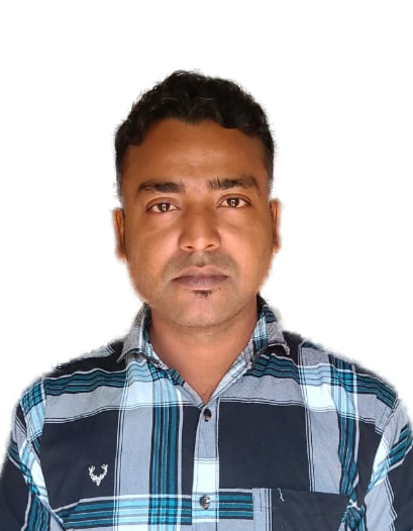
Jakir Hossain
Professional Software Developer
Hello! I'm Jakir, a passionate software developer dedicated to building tools that solve real-world problems. I created iLovePDF Tools Hub to provide a fast, secure, and entirely free platform where anyone can manage their daily digital tasks without the hassle of installing complex software. My mission is to make technology simple, accessible, and highly efficient for millions of users worldwide.